> ## Documentation Index
> Fetch the complete documentation index at: https://docs.cotool.ai/llms.txt
> Use this file to discover all available pages before exploring further.
# Managing Roles & Users
> How to create custom roles, assign permissions, and manage user access
This guide walks you through creating custom roles, managing user assignments, and troubleshooting common permission issues.
You need the `setting.perms.manage` permission to create or edit roles. By default, only Super Admins have this permission.
## Assigning Roles to Users
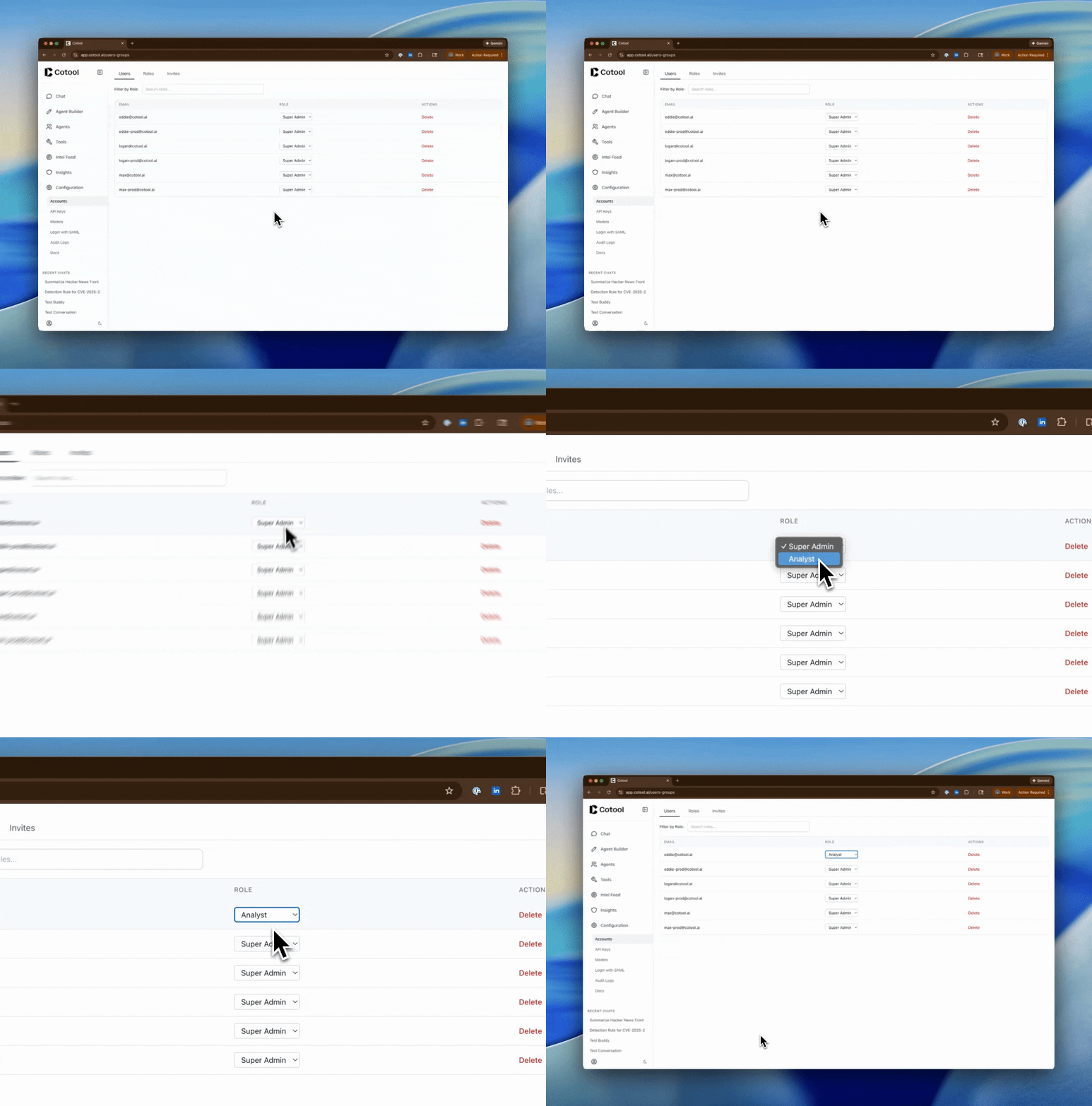 Navigate to **Settings > Accounts** and click the **Users** tab
Locate the user you want to update in the table. You can use the **Filter by Role** dropdown to narrow down the list if you have many users.
Click the **Role** dropdown in the user's row and select the new role from the list. All available roles (both system and custom) will appear here.
The change is applied immediately—no need to click "Save". The user's access updates in real-time (they may need to refresh their browser if currently logged in).
**Protection for Super Admins**: You cannot change the last Super Admin's role. Every organization must have at least one Super Admin at all times. To change the last Super Admin's role, first promote another user to Super Admin.
## Creating a Custom Role
**New to permissions?** Check out the [Permission Validation Examples](#permission-validation-examples) section below to understand how prerequisite permissions work and see common validation scenarios before you start.
Navigate to **Settings > Accounts** and click the **Users** tab
Locate the user you want to update in the table. You can use the **Filter by Role** dropdown to narrow down the list if you have many users.
Click the **Role** dropdown in the user's row and select the new role from the list. All available roles (both system and custom) will appear here.
The change is applied immediately—no need to click "Save". The user's access updates in real-time (they may need to refresh their browser if currently logged in).
**Protection for Super Admins**: You cannot change the last Super Admin's role. Every organization must have at least one Super Admin at all times. To change the last Super Admin's role, first promote another user to Super Admin.
## Creating a Custom Role
**New to permissions?** Check out the [Permission Validation Examples](#permission-validation-examples) section below to understand how prerequisite permissions work and see common validation scenarios before you start.
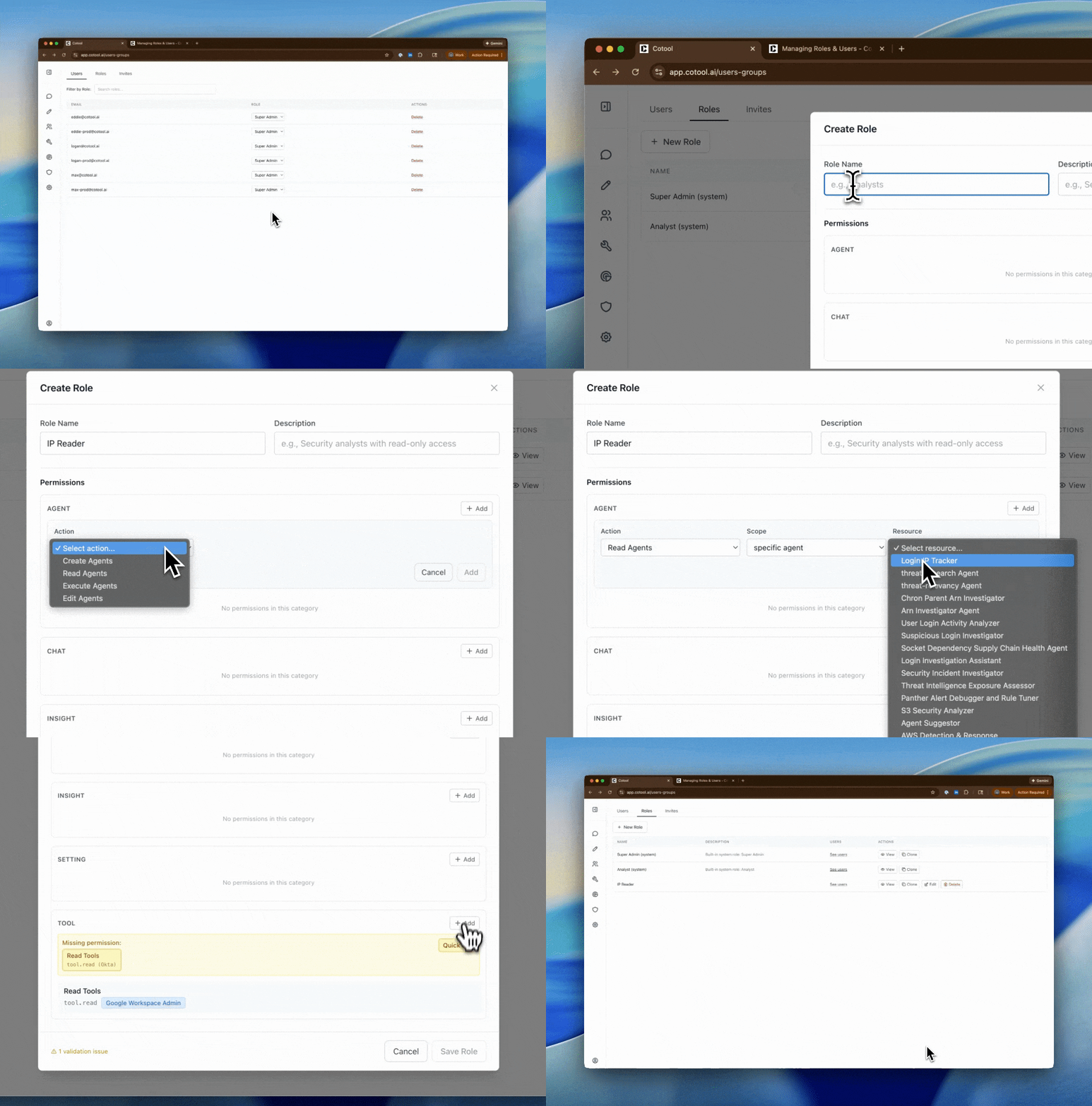 In the **Roles** tab, click **+ New Role**
* **Name**: Short, descriptive name (e.g., "Security Analysts", "Tier 1 Operators")
* **Description**: Explain who this role is for and what they can do
Click **+ Add Permission** to add each permission:
1. **Select Action** - Choose what can be done (e.g., "Read Agents")
2. **Select Scope** - Choose "all" or "specific" (if available)
3. **Select Resource** - If "specific", choose which resource (e.g., which agent or tool)
4. Click **Add**
Repeat for each permission needed.
As you add permissions, Cotool validates them in real-time:
* **Yellow warnings** appear for missing prerequisite permissions
* Click **Quick Fix** to automatically add missing permissions
* The **Save Role** button is disabled until all validation issues are resolved
Once validation passes, click **Save Role**
**Quick Start**: If you're creating a role similar to an existing one, consider cloning a role instead.
## Inviting New Users
Click the **Invites** tab
Click **+ Invite User**
* **Email**: The user's email address
* **Role**: Which role to assign them (defaults to your role if you're not a Super Admin)
If you don't have `setting.perms.manage` permission, you can only invite users to your own role.
Click **Send Invite**.
*Note: the user will not receive an email but they will now be able to login*
View pending invites in the **Invites** tab. You can cancel pending invites if needed.
## Viewing Role Permissions
To see what permissions a role has:
In the **Roles** tab, find the role you want to inspect
Click the **View** button (eye icon)
A modal opens showing:
* All permissions grouped by category (agent, tool, setting, etc.)
* Scope for each permission (all vs specific)
* Specific resource names if applicable
## Troubleshooting Permission Issues
**Check**:
1. Does their role have `agent.read` for that agent (or all agents)?
2. Does their role have `tool.read` for all tools that agent uses?
3. Did someone in their role create that agent? (If yes, they should have automatic access)
**Fix**: Add `agent.read` and the required `tool.read` permissions to their role.
**This is likely expected behavior!**
When any user in a role creates an agent, all other users in that same role automatically get `agent.read`, `agent.execute`, and `agent.edit` permissions for that specific agent.
**Example**: If "Alice" (Security Operator role) creates the "Phishing Triage" agent, all other Security Operators automatically gain access to that agent—even if their role doesn't have "all agents" permissions.
**Fix**: Create a separate custom role with different permissions for users who shouldn't share agent access.
**Check**:
1. Does their role have `agent.execute` for that agent?
2. Does their role have `agent.read` for that agent?
3. Does their role have `tool.use` for all tools that agent uses?
**Fix**: Add `agent.execute`, `agent.read`, and the required `tool.use` permissions.
**Check**:
1. Which setting are they trying to access?
2. Does their role have the corresponding `setting.*` permission?
**Fix**: Settings permissions are powerful. Consider if this user should really have access, or if you should assign them to a Super Admin role.
**Symptom**: Yellow warning boxes appear showing missing permissions.
**Fix**:
1. Read the error message - it tells you which permissions are missing
2. Click **Quick Fix** to automatically add them
3. Or manually add the missing permissions using **+ Add Permission**
Common causes:
* Added `agent.execute` without `agent.read`
* Added `agent.read` for an agent without tool permissions for its tools
* Added `tool.use` without `tool.read`
**Symptom**: System prevents changing or removing a user's role.
**Cause**: They are the last Super Admin in your organization.
**Fix**: Promote another user to Super Admin first, then you can change this user's role.
## Common Custom Role Templates
Here are some common custom role configurations:
### Agent Runner
**Use case**: Users who need to execute agents in chat but not create or edit them.
```
Permissions:
- agent.read (all)
- agent.execute (all)
- tool.read (all)
- tool.use (all)
- chat.manage (all)
- insight.read (all)
```
### Agent Builder
**Use case**: Users who need to create and edit agents but not manage org settings.
```
Permissions:
- agent.create (all)
- agent.read (all)
- agent.execute (all)
- agent.edit (all)
- tool.read (all)
- tool.use (all)
- chat.manage (all)
- insight.read (all)
```
### Limited Scope Role
**Use case**: Users who need to only access specific agents (e.g., only the Phishing Triage agent).
```
Permissions:
- agent.read (specific: phishing-triage-agent)
- agent.execute (specific: phishing-triage-agent)
- tool.read (specific: email)
- tool.read (specific: virustotal)
- tool.use (specific: email)
- tool.use (specific: virustotal)
- chat.manage (all)
```
## Best Practices
**Start with Built-in Roles** - The Super Admin and Analyst roles cover most use cases. Only create custom roles when you need fine-grained control.
**Use Cloning** - Instead of building roles from scratch, clone an existing role and modify it. This reduces validation errors.
**Test Before Rollout** - After creating a custom role, assign it to a test user (or yourself) and verify they can access what they need before assigning to multiple users.
**Document Custom Roles** - Use the description field to explain who should be assigned to each custom role and why.
**Review Regularly** - Periodically audit your custom roles. Remove roles that are no longer needed and update permissions as your org's needs change.
**Be Careful with Settings Permissions** - Permissions like `setting.perms.manage` and `setting.users.delete` are powerful. Only grant these to trusted users.
## Audit Trail
All role and permission changes are logged in the **Audit Logs** (if you have `setting.auditLog.read` permission):
* Role creation/deletion
* Permission changes (what was added/removed)
* User role assignments
* Who made each change and when
Use audit logs to track who has access to what over time.
In the **Roles** tab, click **+ New Role**
* **Name**: Short, descriptive name (e.g., "Security Analysts", "Tier 1 Operators")
* **Description**: Explain who this role is for and what they can do
Click **+ Add Permission** to add each permission:
1. **Select Action** - Choose what can be done (e.g., "Read Agents")
2. **Select Scope** - Choose "all" or "specific" (if available)
3. **Select Resource** - If "specific", choose which resource (e.g., which agent or tool)
4. Click **Add**
Repeat for each permission needed.
As you add permissions, Cotool validates them in real-time:
* **Yellow warnings** appear for missing prerequisite permissions
* Click **Quick Fix** to automatically add missing permissions
* The **Save Role** button is disabled until all validation issues are resolved
Once validation passes, click **Save Role**
**Quick Start**: If you're creating a role similar to an existing one, consider cloning a role instead.
## Inviting New Users
Click the **Invites** tab
Click **+ Invite User**
* **Email**: The user's email address
* **Role**: Which role to assign them (defaults to your role if you're not a Super Admin)
If you don't have `setting.perms.manage` permission, you can only invite users to your own role.
Click **Send Invite**.
*Note: the user will not receive an email but they will now be able to login*
View pending invites in the **Invites** tab. You can cancel pending invites if needed.
## Viewing Role Permissions
To see what permissions a role has:
In the **Roles** tab, find the role you want to inspect
Click the **View** button (eye icon)
A modal opens showing:
* All permissions grouped by category (agent, tool, setting, etc.)
* Scope for each permission (all vs specific)
* Specific resource names if applicable
## Troubleshooting Permission Issues
**Check**:
1. Does their role have `agent.read` for that agent (or all agents)?
2. Does their role have `tool.read` for all tools that agent uses?
3. Did someone in their role create that agent? (If yes, they should have automatic access)
**Fix**: Add `agent.read` and the required `tool.read` permissions to their role.
**This is likely expected behavior!**
When any user in a role creates an agent, all other users in that same role automatically get `agent.read`, `agent.execute`, and `agent.edit` permissions for that specific agent.
**Example**: If "Alice" (Security Operator role) creates the "Phishing Triage" agent, all other Security Operators automatically gain access to that agent—even if their role doesn't have "all agents" permissions.
**Fix**: Create a separate custom role with different permissions for users who shouldn't share agent access.
**Check**:
1. Does their role have `agent.execute` for that agent?
2. Does their role have `agent.read` for that agent?
3. Does their role have `tool.use` for all tools that agent uses?
**Fix**: Add `agent.execute`, `agent.read`, and the required `tool.use` permissions.
**Check**:
1. Which setting are they trying to access?
2. Does their role have the corresponding `setting.*` permission?
**Fix**: Settings permissions are powerful. Consider if this user should really have access, or if you should assign them to a Super Admin role.
**Symptom**: Yellow warning boxes appear showing missing permissions.
**Fix**:
1. Read the error message - it tells you which permissions are missing
2. Click **Quick Fix** to automatically add them
3. Or manually add the missing permissions using **+ Add Permission**
Common causes:
* Added `agent.execute` without `agent.read`
* Added `agent.read` for an agent without tool permissions for its tools
* Added `tool.use` without `tool.read`
**Symptom**: System prevents changing or removing a user's role.
**Cause**: They are the last Super Admin in your organization.
**Fix**: Promote another user to Super Admin first, then you can change this user's role.
## Common Custom Role Templates
Here are some common custom role configurations:
### Agent Runner
**Use case**: Users who need to execute agents in chat but not create or edit them.
```
Permissions:
- agent.read (all)
- agent.execute (all)
- tool.read (all)
- tool.use (all)
- chat.manage (all)
- insight.read (all)
```
### Agent Builder
**Use case**: Users who need to create and edit agents but not manage org settings.
```
Permissions:
- agent.create (all)
- agent.read (all)
- agent.execute (all)
- agent.edit (all)
- tool.read (all)
- tool.use (all)
- chat.manage (all)
- insight.read (all)
```
### Limited Scope Role
**Use case**: Users who need to only access specific agents (e.g., only the Phishing Triage agent).
```
Permissions:
- agent.read (specific: phishing-triage-agent)
- agent.execute (specific: phishing-triage-agent)
- tool.read (specific: email)
- tool.read (specific: virustotal)
- tool.use (specific: email)
- tool.use (specific: virustotal)
- chat.manage (all)
```
## Best Practices
**Start with Built-in Roles** - The Super Admin and Analyst roles cover most use cases. Only create custom roles when you need fine-grained control.
**Use Cloning** - Instead of building roles from scratch, clone an existing role and modify it. This reduces validation errors.
**Test Before Rollout** - After creating a custom role, assign it to a test user (or yourself) and verify they can access what they need before assigning to multiple users.
**Document Custom Roles** - Use the description field to explain who should be assigned to each custom role and why.
**Review Regularly** - Periodically audit your custom roles. Remove roles that are no longer needed and update permissions as your org's needs change.
**Be Careful with Settings Permissions** - Permissions like `setting.perms.manage` and `setting.users.delete` are powerful. Only grant these to trusted users.
## Audit Trail
All role and permission changes are logged in the **Audit Logs** (if you have `setting.auditLog.read` permission):
* Role creation/deletion
* Permission changes (what was added/removed)
* User role assignments
* Who made each change and when
Use audit logs to track who has access to what over time.